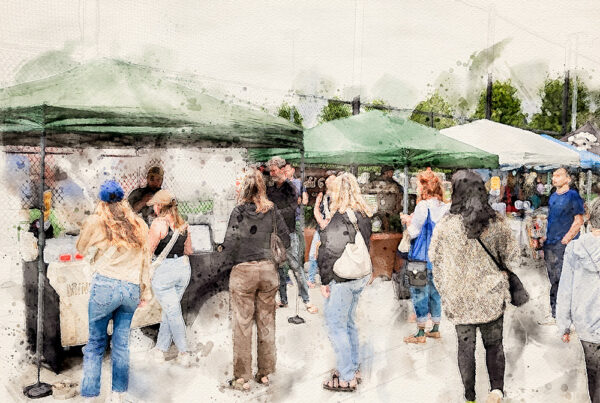
Of the building blocks needed to create a great user experience online, research has proven that high quality photography is one of the most important. Whether you need your website to entice potential customers through blog posts, or have a social media campaign that is expanding the reach of your brand, imagery is key. How strong is the research, you might ask? Here are a few of the many data points for you:
- Digital content receives 94% more views if relevant images are included;
- Posts on Facebook with images receive 230% more likes, comments and shares than posts without;
- The use of authentic images improves the trustworthy index of B2B sites.
Besides attracting readers to keep reading, photos are valuable by packing more information into every second of engagement. Our brains are wired to process visuals 60,000 faster than text, making the most of every page view. (Learn more about the neuroscience behind websites in this blog post.)
The challenge is: camera phones are so common, many people think creating a good photo is intuitive.
It’s not. Not all photos are created equal. So let’s break down the two areas that you need to understand to create and effectively use high quality photography.
First: what makes a high quality photo?
- The foundation of all photo choices and usage must be your brand strategy. Is your brand voice formal or quirky? Are you presenting to a B2B audience, or a specific consumer demographic? You want to use images that connect with your target audience. And don’t forget your brand color scheme. Your photos should include the colors from your brand palette.
- When possible, include pictures you have taken yourself. This is especially true for blog posts and social media posts. While stock photography is necessary for many of uses throughout a website, social media post engagement is significantly higher with authentic, personal photos.
- When you are taking your photos, remember that lighting is the single most important factor. You need lighting that will show all the details of your photo, but not so much light that you have bright spots and dark shadows. If you don’t have an indoor location with bright light, go outside early afternoon. Out of the direct sun, you can find balanced natural light.
-

Seeing David Sanborn perform live is great. These bright light conditions: not so much. -
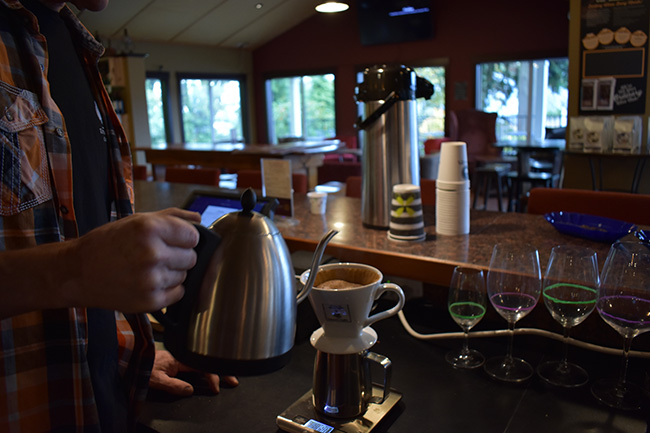
Back lighting from a window made this photo unusable.
- Composition of the photo helps point the eye towards your message. Be strategic when you consider the layout of the photo, and crop strategically.
-

The original photo: the message is about the building. -
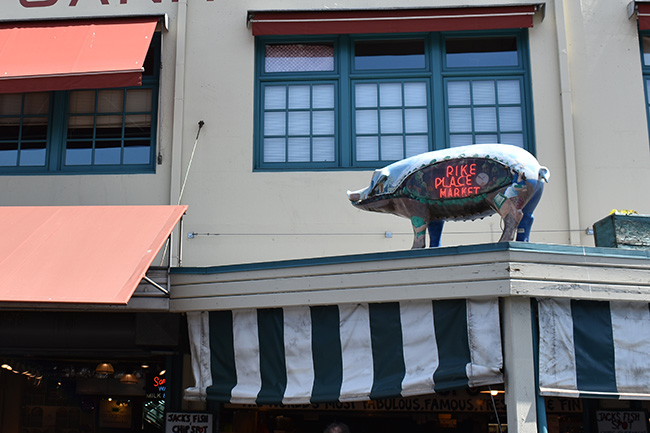
The cropped photo puts the emphasis on the pig.
- It’s ok to use stock photography for an unusual subject or large images, just be selective with your photos. Common stock photography sites like iStock.com and Shutterstock.com have quite a few cliché photos. But they also have some unique images if you take the time to dig. Other sources for uncommon photos are: fancycrave.com, deathtothestockphoto.com, and unsplash.com.
- If you don’t want to sacrifice quality, but have a tight budget, check out a favorite of ours: pikwizard.com. Lovely photos that are above par for a no-cost stock photography site, and they have a simple to use (and free again!) graphic editing tool, designwizard.com.
- Don’t use pictures of real people without their permission. It’s considered an endorsement of your brand, and you could create ill will (or worse) if you don’t explicitly ask their permission.
Then: optimize your images for online use
- One reason you will almost always need to edit a photo for online use: file size. DSLR cameras and smartphones take photos that are 1MB and larger. If you were to use these unedited photos, it would slow your page load times to a crawl. Instead:
- use photo editing software to reduce the resolution. You don’t need – or want – a photo to be print quality. This will save a lot of file size.
- Most social media platforms will automatically resize images when you upload them. You will loose control over how the image might be cropped – or the ultimate resolution quality – but file size will be reduced.
- Most original photos straight from your camera have much larger dimensions than you need for a blog post or social media post. Use editing software to crop the photo smaller to the right size (we have dimension guidelines below).
- For most photos in the body of a blog post, we suggest aiming for no more than 70KB in size (for the hero images at the top of the page, we bump that up if necessary, but no larger than 200MB).
- Looking for photo editing software? There are several apps you can get for Android and iPhones. For desktop use, we suggest Photoshop Elements or Paint.net. Apps like Canva and Adobe’s Spark can create great social media posts with your own photos or their built in stock photography options.
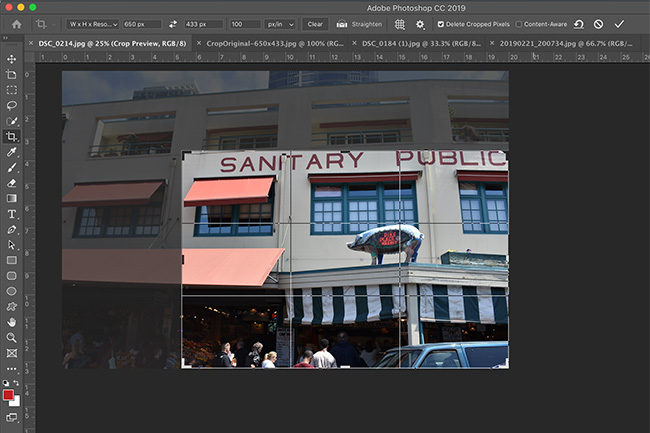
- Know what image dimensions each social media platform uses. If you want to be precise on the layout of your photo (because you are a master at composition, like we mention above), here’s a list of the common platforms’ image sizes:
- Facebook: 1200 pixels wide by 630 pixels tall
- LinkedIn: 1200px wide by 627px tall
- Twitter: minimum of 440px wide by 220px tall, and you can tweet up to 4 images at a time.
- Pinterest: 600px wide by 900px tall is optimal – or any 2:3 aspect ratio
- Instagram: any square size by 1080px wide by 1080px tall is recommended.
- Check your post on your phone and a desktop computer to see how the photo layout is working. Social media platforms will center your photos differently depending on your device. For a perfect composition, make sure you take a look in case you need to quickly recrop.
We can’t over-emphasize how important it is to check your photos after they are posted. All social media platforms and most blogging platforms have built in photo alignment settings that can surprise you (and create an unpleasant experience for your user). But investing a bit more time will get you the polish you are hoping for.